Steps
- 1
Open the phone in Finder
Connect the phone and click Open in Finder in PortLine. The connection guide covers USB and Wi-Fi.
- 2
Go to DCIM › Camera
Camera photos and videos are in DCIM/Camera. Screenshots are usually in DCIM/Screenshots or Pictures/Screenshots, and photos saved from apps in Pictures or Download.
- 3
Preview before you copy
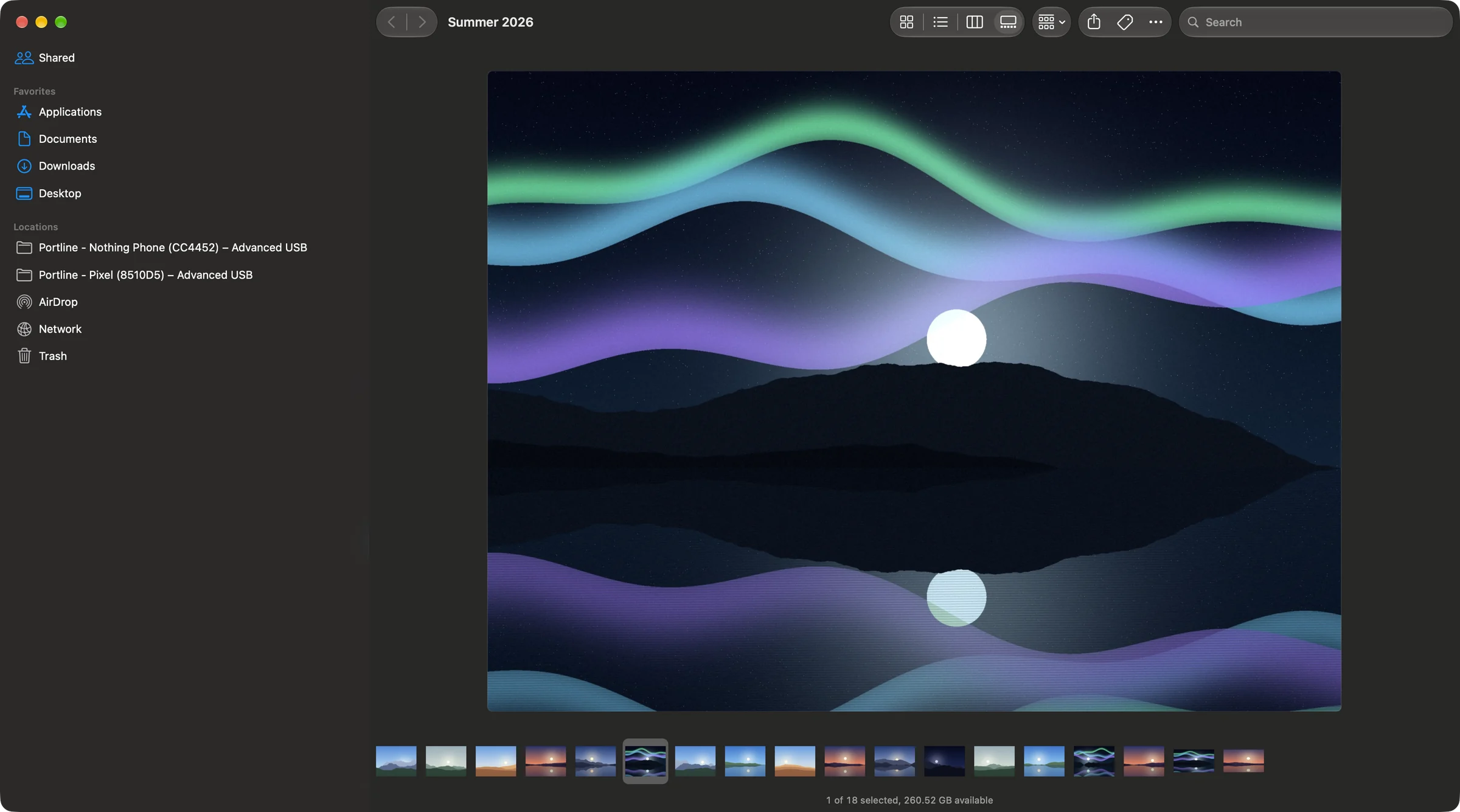
Switch Finder to gallery view (View › as Gallery) and flick through at full size, or press Space for Quick Look. PortLine reads ahead, so the next photo is ready before you get to it.
- 4
Copy them to the Mac
Select the photos and drag them to a folder, or choose Copy Selected to Mac…. To add them to the Photos app, drag them from Finder into Photos, or use File › Import in Photos and pick the phone's folder.
Thumbnails without downloading
Over Standard USB, Finder shows the thumbnails the phone already has, so a folder of thousands of photos fills in without copying a byte of the photos themselves.
Find a photo by name
PortLine indexes the phone for Spotlight. Type part of a file name, IMG_2026 for example, in Spotlight and it finds photos on the phone, even in folders you never opened. How Spotlight search works.
Keep the originals
Copying from Finder gives you the original file: same resolution, same format, same metadata. Nothing is resized or recompressed on the way.
Questions
Why don't my photos show up in Image Capture?
Image Capture only sees phones in camera (PTP) mode and only their camera roll. PortLine shows the whole phone in Finder instead.
Can I copy photos over Wi-Fi?
Yes. For a large batch, USB is several times faster because a phone's Wi-Fi upload is the limit.