Steps
- 1
Join the same Wi-Fi network
Put the Mac and the phone on the same trusted network. Guest networks and client isolation stop devices from finding each other.
- 2
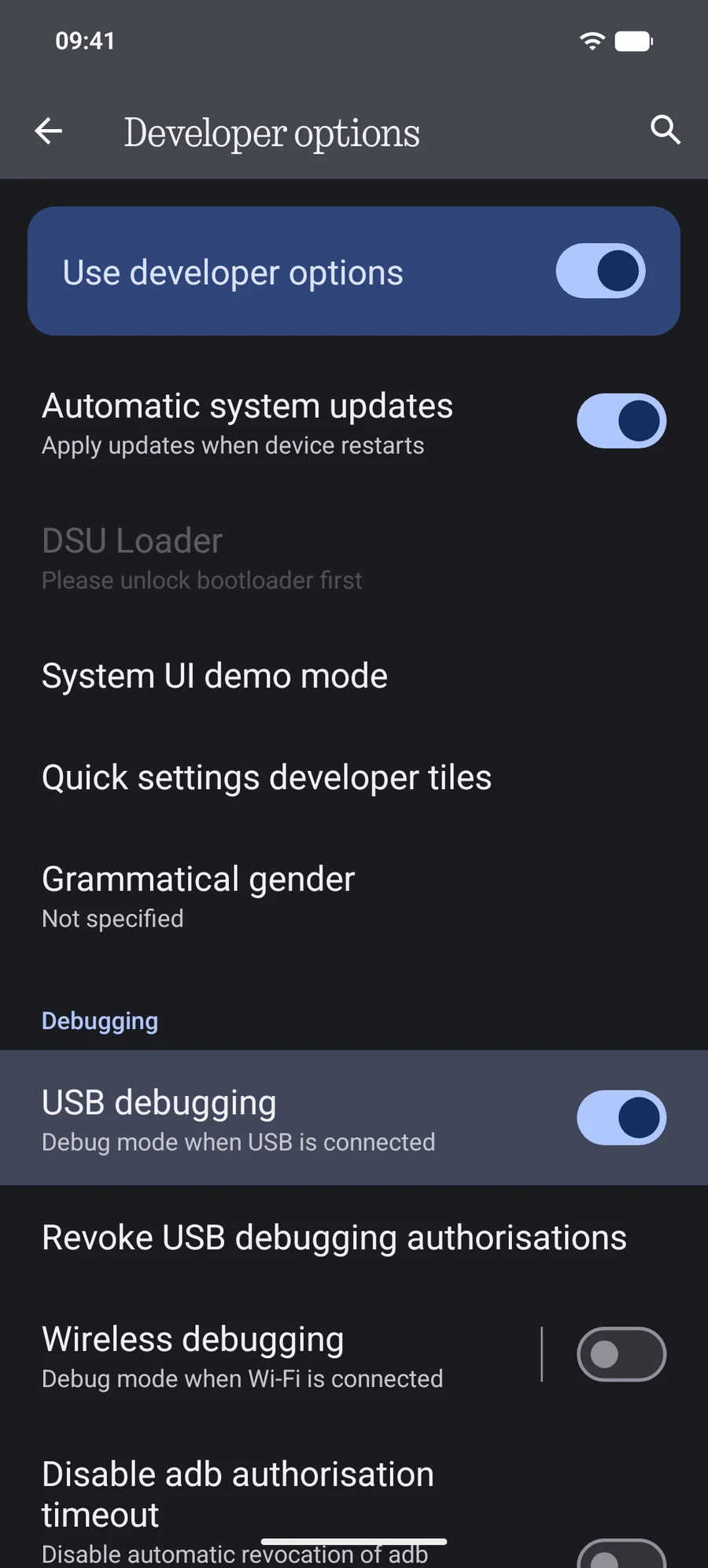
Turn on Wireless debugging
Enable Developer options (how), then switch on Wireless debugging and allow it for this network.
- 3
Pair with a QR code
In PortLine, click Pair over Wi-Fi. On the phone, tap Wireless debugging › Pair device with QR code and scan the code on the Mac. Allow Local Network access for PortLine when macOS asks.
- 4
Open in Finder
The phone shows up in Finder. It reconnects by itself whenever both devices are on the network and Wireless debugging is on.
Android 10 and older
Wireless debugging doesn't exist before Android 11. PortLine can set up an older Wi-Fi mode over USB first. That mode is not encrypted: use it only on a private network you trust, and use the app's Turn Off Wi-Fi step when you're done.
What to expect from Wi-Fi
Wi-Fi is great for a few files and for browsing without a cable. For large videos and whole folders, USB is far faster: a phone's Wi-Fi upload is slow compared with its download. The numbers.
Questions
Pairing fails.
Check both devices are on the same network, client isolation is off, and that macOS allows PortLine in System Settings › Privacy & Security › Local Network.
Does Wi-Fi drain the battery?
Wireless debugging uses little power while idle. PortLine doesn't keep the radio busy when nothing is being transferred.